 Barcode-Scanner
Free barcode & QR code scanner for Windows and Android Hold up the code. Done.
Read barcodes and QR codes – on your PC with the webcam or on the go with your phone. The Windows program and the Android app do the same thing: show the content instantly, open links with one click, copy everything else. No ads, no account, no internet connection needed.
Free. Program for Windows 10 and 11, app for Android 8 or later. Version 1.0.5. All downloads
How it works
No settings, no sign-up. Program and app start the camera by themselves and wait for a code.
- 01
Download and start
On the PC: unzip the file and double-click BarcodeScanner.exe – no installation. On the phone: download and install the APK, the guide shows how. On first start the app asks for camera access.
- 02
Hold the code up to the camera
The camera picture starts right away. When a code is recognised, the frame turns green, you hear a short beep – the phone also vibrates – and the content is shown. The same code is reported only once within three seconds. In poor light, the phone's flashlight helps.
- 03
Click the link or copy the text
If the content is a web address, a link appears that opens in your browser – only when you click it, never by itself. Everything else is copied to the clipboard with one click; on the phone you can also share it via WhatsApp, email & co.
- 04
History and image files
Every hit is added to the history with its time; tap or double-click to show it again. With Open image the scanner also reads codes from photos and screenshots – handy for QR codes someone sent you as a picture.
Scan a QR code on your PC
A QR code on paper but no phone at hand? Or the code is in an email? On a Windows PC you can do both – with the webcam or straight from the image file.
How to do it with a webcam
- Download Barcode-Scanner for Windows and unzip the file.
- Start BarcodeScanner.exe – the webcam switches on.
- Hold the QR code 15–30 cm in front of the camera until the frame turns green.
- Read the content, copy it or click the link.
No webcam: save a screenshot or image of the QR code and load it with Open image….
Your webcam as a barcode scanner
Not just QR codes: the program also reads barcodes – handy when there is no handheld scanner around.
- EAN and UPC numbers from products – check them without typing
- Read delivery notes and warehouse labels (Code 128, Code 39)
- Data Matrix codes on components and medicine packs
- Decode ticket and ID codes (Aztec, PDF417)
On the go, the Android app does the same with your phone camera.
Screenshots
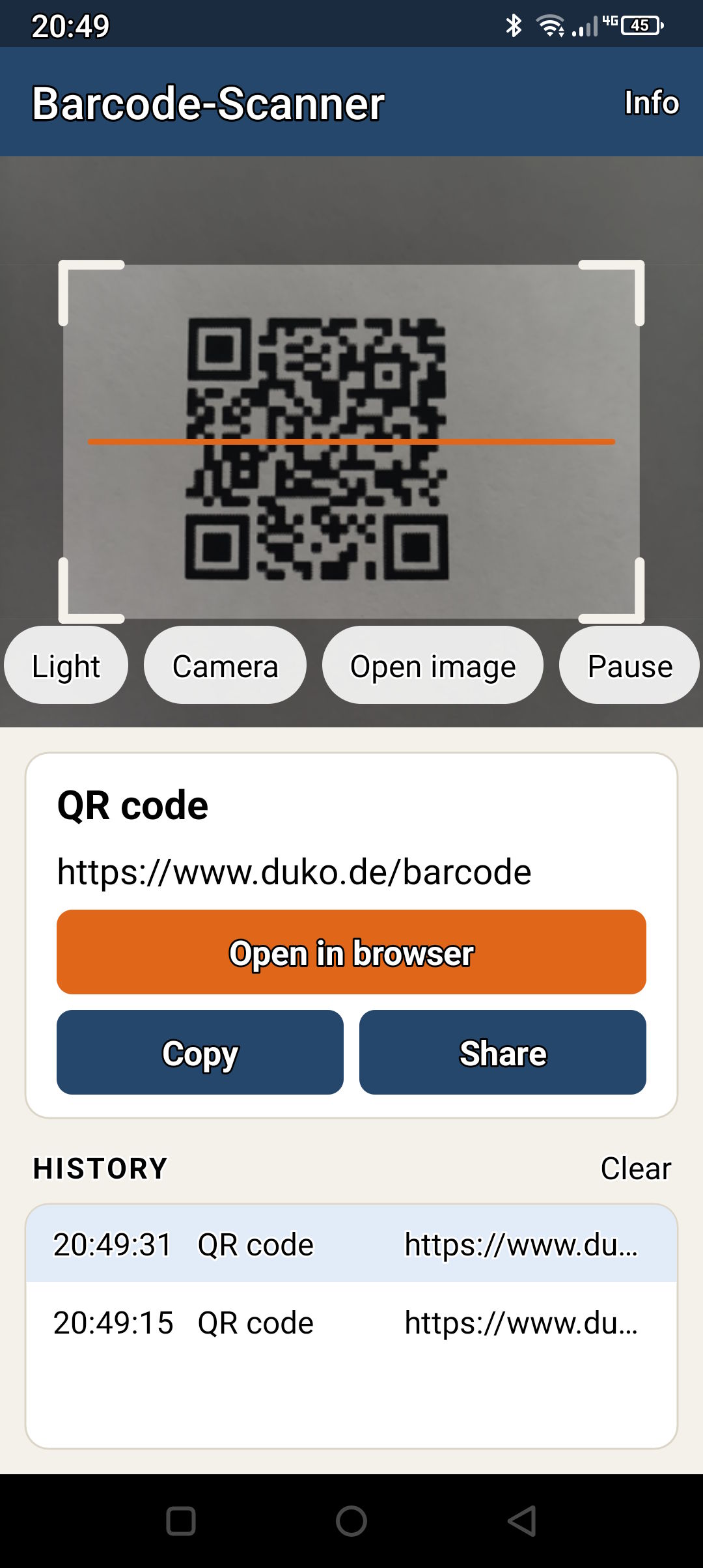
On your PC and your phone
Two versions, one function: both recognise the same codes with the same technology and show the result the same way. Use whichever is at hand – or both.
For Windows
- Windows 10 or 11, 64-bit
- Any webcam, including USB and document cameras
- No installation: unzip and start
- Choose camera, open image files, history
- English and German, following your Windows language
barcode-scanner.zip, 82 MB, Version 1.0.5
For Android
- Android 8 or later
- Rear or front camera, flashlight
- Beep and vibration on a hit, sharing
- English and German, following your phone language
- Straight from this page, no Google account
barcode-scanner.apk, 40 MB, Version 1.0.5
Both come in English and German – they follow the language of Windows or your phone. You can change it in the program under Language at the top, and in the app under Info → Language.
Supported codes
From parcel labels to QR codes on posters. Several codes in the same picture are recognised at once.
2D codes
- QR code
- Data Matrix
- Aztec
- PDF417
QR codes on posters and packaging, Data Matrix on components and medicines, Aztec on train and plane tickets, PDF417 on ID cards and shipping labels.
Barcodes
- EAN-13
- EAN-8
- UPC-A
- UPC-E
- Code 128
- Code 39
- Code 93
- Codabar
- ITF
- GS1 DataBar
Retail product numbers, delivery notes, warehouse and parcel labels. Even upside down or light on dark.
No ads. Really.
Works offline
Recognition happens entirely on your PC or phone. Neither program nor app connects to the internet on its own.
No ads, no tracking
No banners, no analytics, no account, no Google services. Camera images are neither stored nor sent anywhere.
Links only on click
A scanned link never opens by itself. You see the full address and decide whether to follow it.
Under the hood
- Recognition
- ZXing.Net – proven open-source library, Apache License 2.0. Program and app share the same recognition code.
- Camera on the PC
- OpenCvSharp (OpenCV) via DirectShow – any webcam Windows knows.
- Camera on the phone
- ZXing.Net.Maui with Android CameraX – without Google ML Kit or Play services.
- Program and app
- C# with .NET 10: Windows Forms on the PC, .NET MAUI for Android. Built in Visual Studio.
Frequently asked questions
What does it cost?
Nothing. Program and app are free – no trial period, no ads, no limitations.
How do I scan a QR code on a PC?
With a webcam and Barcode-Scanner for Windows: download and unzip the program, start BarcodeScanner.exe and hold the QR code up to the webcam. The content appears instantly, and a link can be clicked. If you only have the QR code as an image or screenshot, open the file with Open image… – you do not even need a camera for that. Step by step
Can I use my webcam as a barcode scanner?
Yes. The Windows program reads barcodes such as EAN-13, UPC and Code 128 as well as QR, Data Matrix and Aztec codes with any webcam Windows recognises – built into a laptop, via USB or a document camera. That is enough for checking product numbers, delivery notes and labels. For high-volume scanning, a handheld scanner is faster.
Is it available in English?
Yes. Program and app come in English and German. They automatically follow the language of Windows or your phone – German stays German, any other language gets English. You can set it permanently in the program under Language at the top and in the app under Info → Language.
Are QR codes dangerous?
A QR code can lead to a fake website (“quishing”), for example on parking tickets or charging stations. That is why Barcode-Scanner never opens a link by itself: you first see the full address and decide whether to visit it. A look at the domain name is often enough to spot a fake.
Why download the app here and not from the Play Store?
The app is distributed directly from this page, so no Google account is needed. The first time, Android asks whether your browser may install apps – you allow it once. The installation guide shows every step. To check for a new version, tap Info → Check for updates in the app.
Windows says “Windows protected your PC” (PC).
Windows SmartScreen shows this for programs that have not been downloaded often yet. To start it anyway:
- Click More info.
- Choose Run anyway.
This is only needed the first time.
No camera is found or the picture stays black.
On the PC: under Settings → Privacy & security → Camera, “Let desktop apps access your camera” must be switched on. If Teams, Zoom or another camera app is running, close it and click Find cameras.
On the phone: the app needs camera permission. If you declined it, tap Allow camera – the app then opens its settings.
Small codes are hard to read.
Many cameras cannot focus close up. Hold the code a little further away until it is sharp, and make sure there is enough light – on the phone, Light helps. Avoid reflections on glossy labels by holding the code at a slight angle.
Is there a version for iPhone or Mac?
No, currently only for Windows and Android.
Are my scans stored anywhere?
Only in the history while program or app is open. After that it is gone. No data is transmitted. All that is remembered is a language you chose explicitly and, in the app, whether beep and vibration are switched on.
I found a bug or have an idea.
Write to admin@duko.de. Feedback goes into the next version.
Camera on, code in front.
Free, no sign-up and no ads – on your PC and your phone.